|
|||
|
Select projects and subprojectsAccess the user profile page: 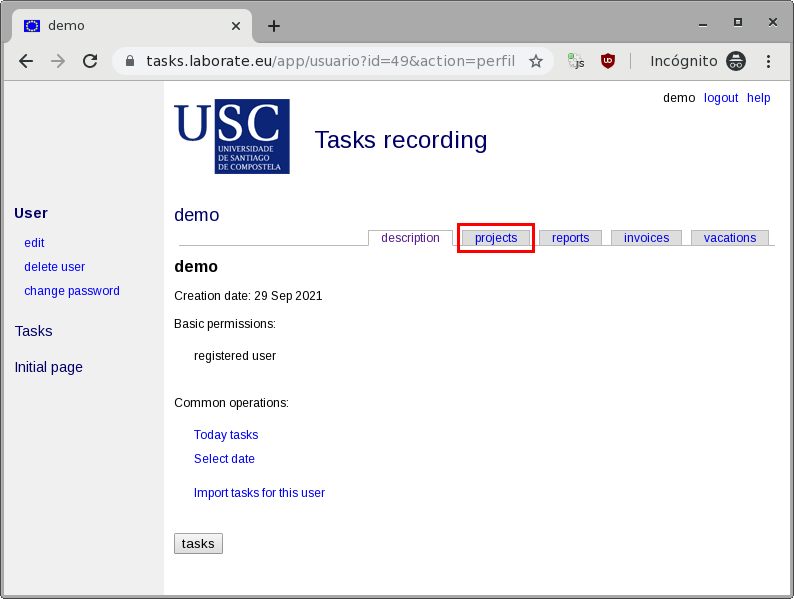 In the horizontal tab bar select the projects tab. 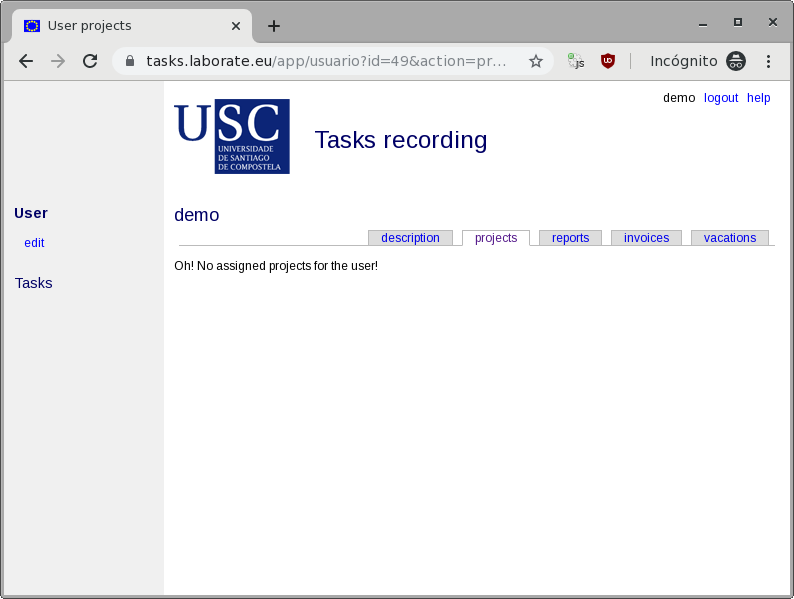 Since the user was just created, no projects have been assigned to it yet. Let's assign some. These will appear later on the task introduction page. Every time your user joins a new project, you must return to this page to add it to the selection (every user can select projects for himself). To assign new projects use the edit command that appears on the left. The list of all projects currently in progress opens. But not only the projects; each one can have some associated subprojects that appear below. Select a project or subproject by checking the box that appears to the left of its name. Be careful! Because if you click on the name/link of the project instead of the checkbox, you'll be directed to another page of the application (the project profile page; ok, check if you're curious about it). Also, a pop-up description of the project, if available, opens when the mouse cursor stops on the project link. 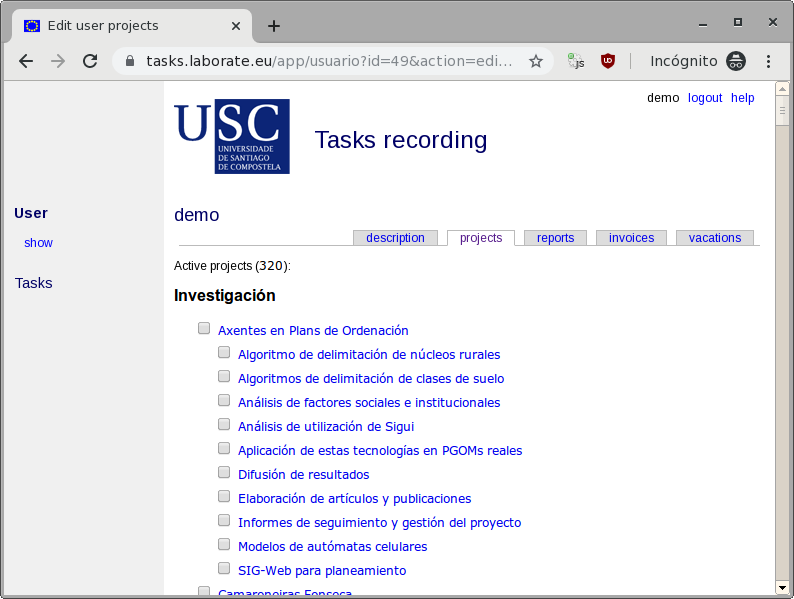 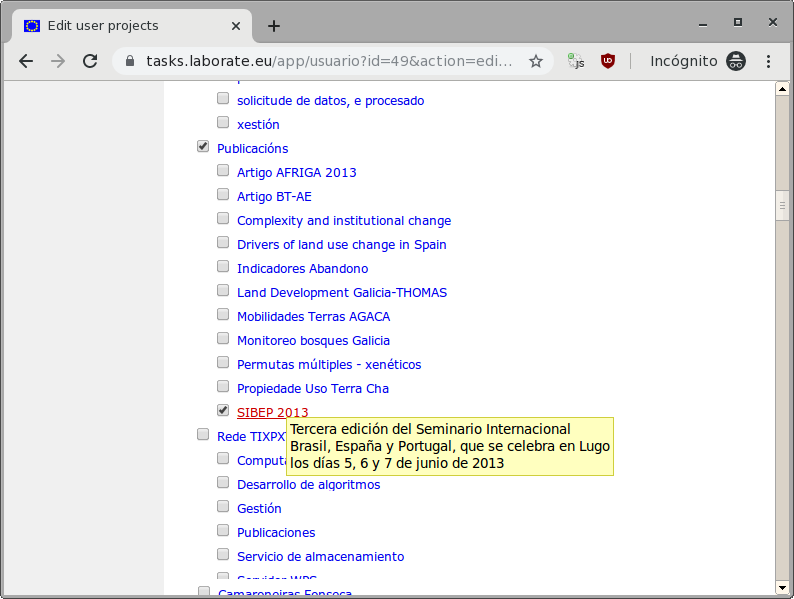 When finished, go to the bottom of the page and press the Submit button to save this information. Then, click the show command on the left side of the page to view the list of projects you have chosen. If not correct, click again on the edit command and correct. 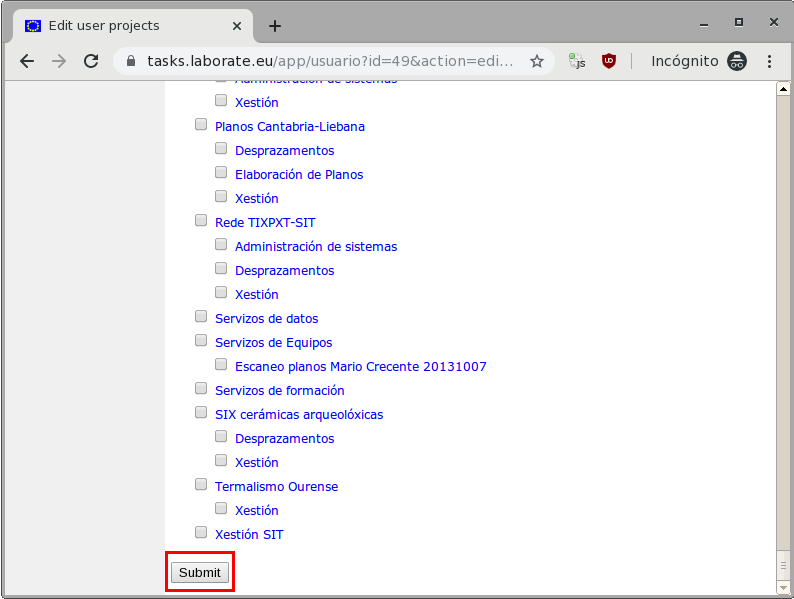 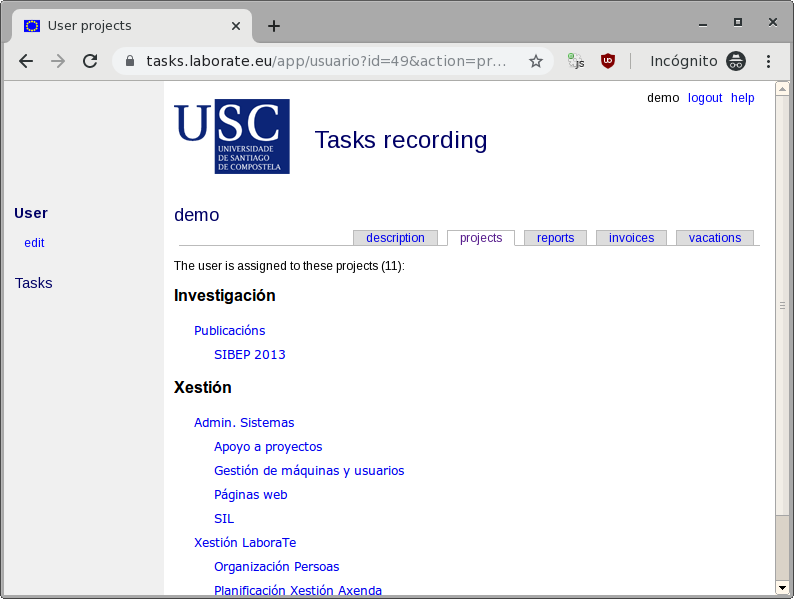 Only administrators (global admin, project admin) can create new projects or subprojects. |