|
|||
|
Enter tasks and timesAccess the user profile page: 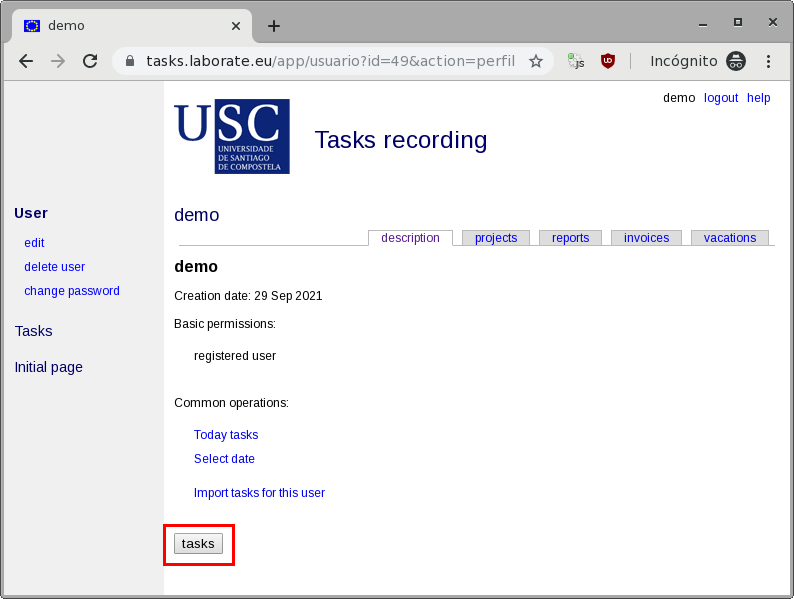 The easiest way to enter new tasks is to click on the tasks button. That moves you to the tasks introduction page for TODAY. 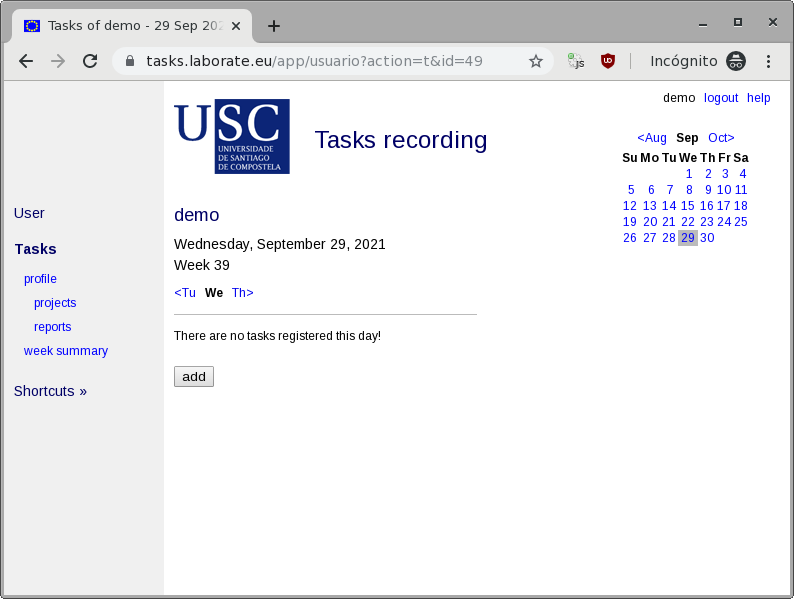 The following blocks can be identified:
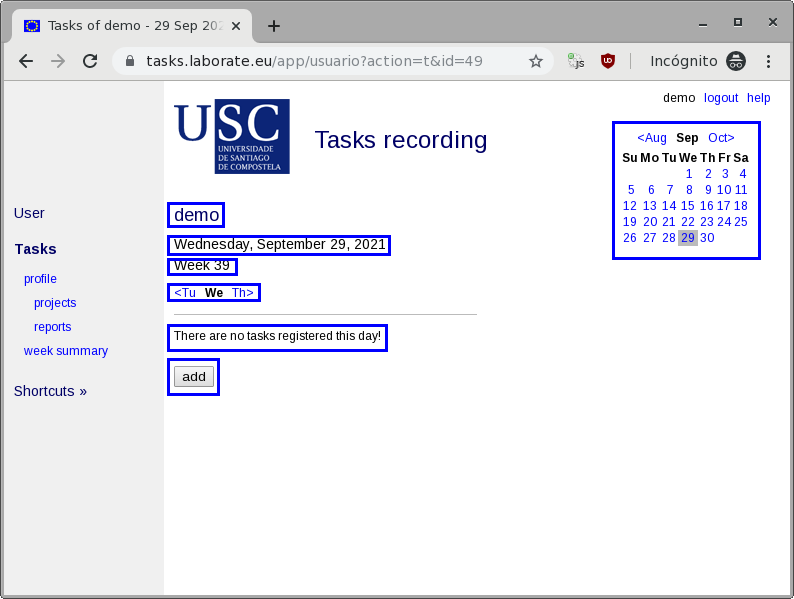 To enter new tasks, click on the add button and open the edit mode. 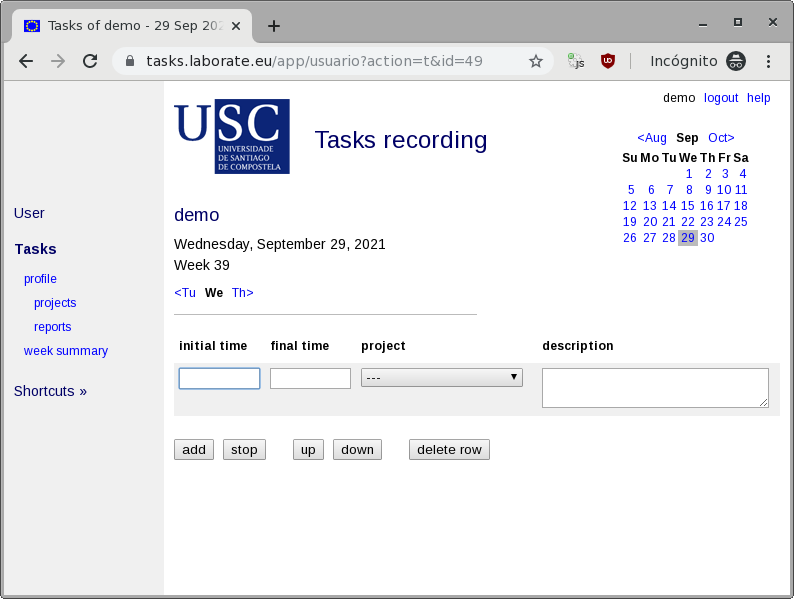 Every tasks uses a row in the table with four fields:
Initial and final times: These are used to automatically calculate the time spent on each task. The following formats are recognized:
There is an advanced mode where instead of indicating start and end times, an amount of time is directly indicated for the task:
Project: Choose one project or subproject from the list selected in the previous step. If you want to register a task of a project that does not appear here, you must return to the previous step of selecting projects and subprojects and add it (tab projects). Description: An optional text field for enter extra information (problems description, remarks, labels, keywords to be searched in the future). It automatically increases the size if necessary. 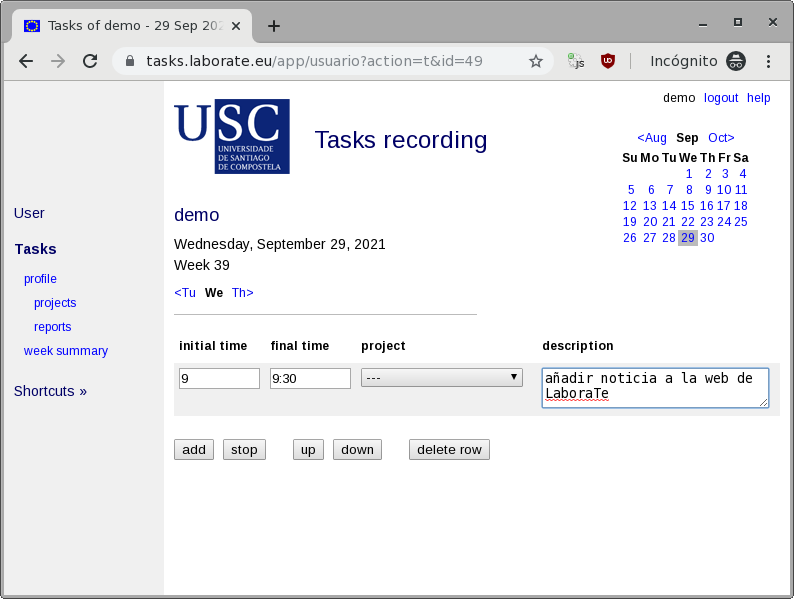 For a task (a row) to be registered, press the add button (that registers the current task and opens a new line) or press the finish button (that registers the current task and exits the edit mode). Pressing [Enter] key with the cursor in the description field also works (registers the current task and adds a new line). Double clicking on another task (row) also works (registers the current task and changes the editing line). Double clicking outside the task list also works (registers the current task and exits the edit mode). 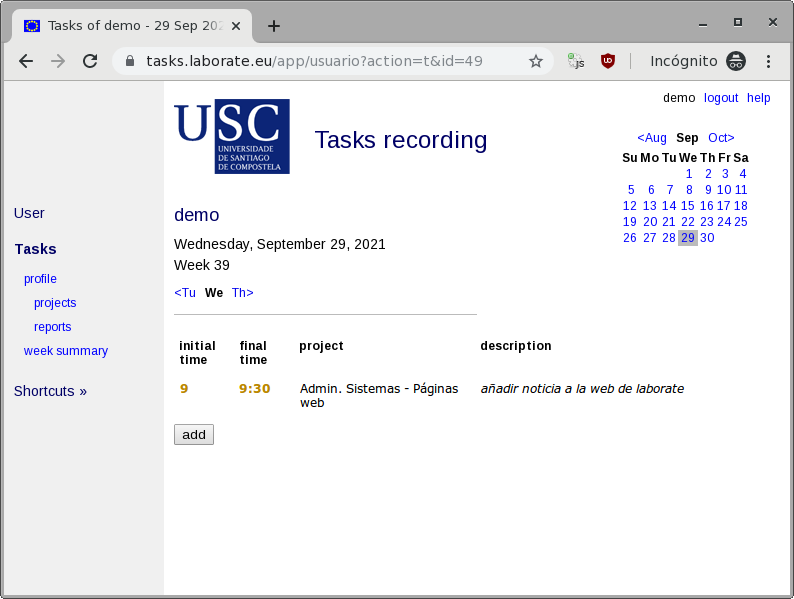 To modify a task already entered, double click on the task. It automatically enters edit mode in the indicated field. To finish editing, press the finish button (or select another, or double clik outside the list or...; just read the previous paragraph). To quickly move between days, use the previous and next day upper links or the calendar on the right. To return to the user profile (did you notice that the horizontal tab bar is missing??), click on the profile command from the list on the left. |